
Ever found yourself creating the same type of document repeatedly, perhaps a memo, report, or invoice, and wishing there was a quicker way to set up its structure and formatting? What Is A Template In Word offers precisely that solution, acting as a foundational blueprint for new documents. Instead of starting from scratch every time, a template provides a pre-designed framework that you can populate with your unique content.
This powerful feature transforms the way you approach document creation, saving significant time and ensuring a consistent, professional appearance across all your work. Whether it's a simple letter, a complex business proposal, or a personal resume, the underlying structure and design can be standardized, removing the need for repetitive formatting tasks.
At its core, a template is more than just a pre-formatted document; it's a master file that defines the layout, styles, placeholder text, and even pre-programmed elements for a specific type of document. It ensures that every new document based on it adheres to a defined standard, from fonts and paragraph spacing to margin settings and corporate branding.
Understanding and utilizing templates effectively can dramatically boost your productivity and the professionalism of your output in Microsoft Word. It's a fundamental concept for anyone looking to streamline their workflow, maintain brand consistency, or simply make document creation less tedious and more efficient.
Understanding What Is A Template In Word
To truly grasp what is a template in Word, it's essential to distinguish it from a regular document. A standard Word document, with the .docx file extension, is a file you create, save, and then work within. When you open a .docx file, you are opening that specific document to edit its content. A template, however, is a special kind of document file, typically with a .dotx extension, designed to be the starting point for new documents, not an end in itself.

Think of it like a mold or a stencil. You don't write on the mold; you use the mold to create many identical objects. Similarly, when you open a Word template, Word doesn't open the template file for editing by default. Instead, it creates a brand-new, unnamed .docx document based on the template's structure and content. This new document inherits all the formatting, styles, and boilerplate text from the template, leaving the original template file untouched and ready for subsequent use.

Templates can encompass a wide range of elements:
* Styles: Pre-defined fonts, sizes, colors, and paragraph formatting for headings, body text, lists, and more.
* Layout: Margins, page orientation, paper size, columns, and section breaks.
* Boilerplate Text: Common phrases, disclaimers, contact information, or standard clauses that appear in every document of that type.
* Graphics: Logos, watermarks, headers, and footers that are standard for a company or specific document.
* Content Controls: Interactive elements like text boxes, drop-down lists, date pickers, or checkboxes that guide the user to input specific information.
* Macros: Small programs that automate repetitive tasks (though .dotm templates are used for those containing macros).
In essence, a Word template encapsulates all the elements that are consistent across a series of similar documents, allowing you to focus purely on the unique content each time.
The Core Benefits of Using Word Templates
The advantages of integrating templates into your workflow are manifold, extending beyond mere convenience to impact efficiency, consistency, and professional presentation. Understanding these benefits solidifies the answer to what is a template in Word from a practical standpoint.
Ensuring Consistency and Professionalism
One of the most significant benefits of using templates is the unwavering consistency they bring to your documents. For individuals, this means all your personal correspondence or project reports will have a uniform look and feel. For businesses, this is critical for brand identity. Every memo, invoice, proposal, or letter originating from your organization can adhere to corporate branding guidelines, including logos, colors, fonts, and specific layouts. This level of consistency projects a highly professional image, reinforcing trust and recognition.
Boosting Efficiency and Saving Time
Imagine the hours saved when you no longer have to manually apply styles, insert a company logo, or re-type standard contact information for every new document. Templates eliminate these repetitive, time-consuming tasks. You simply select a template, and the document's structure is instantly ready. This allows you to jump directly into writing the unique content, significantly speeding up the document creation process and freeing up valuable time for more critical activities.

Reducing Errors and Standardizing Information
Manual formatting is prone to errors. A forgotten style, an incorrectly sized logo, or a misspelled disclaimer can detract from the professionalism of your document. Templates minimize such human errors by embedding the correct elements from the outset. Furthermore, they can include placeholder text or content controls that guide users to input specific, standardized information, ensuring that critical data fields are not overlooked and are entered in the correct format. This standardization is invaluable in compliance-driven environments.

Empowering Users of All Skill Levels
Templates lower the bar for creating high-quality documents. Even users with limited Word experience can produce polished, professional-looking output simply by filling in the blanks within a well-designed template. This democratizes document creation, allowing more team members to contribute effectively without requiring extensive training in Word's formatting intricacies.
Types of Templates Available in Word
Microsoft Word offers a rich ecosystem of templates, catering to a vast array of document needs. Knowing where to find and how to differentiate these types is key to leveraging their full potential.
Built-in Word Templates
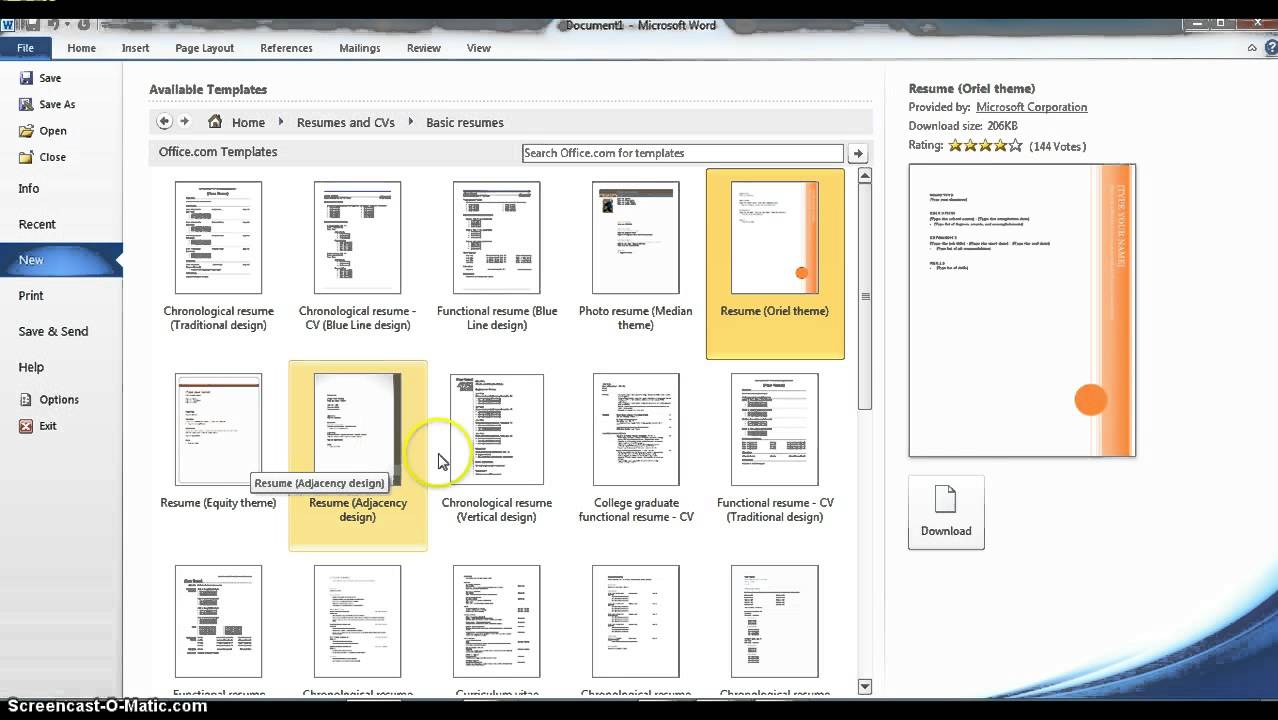
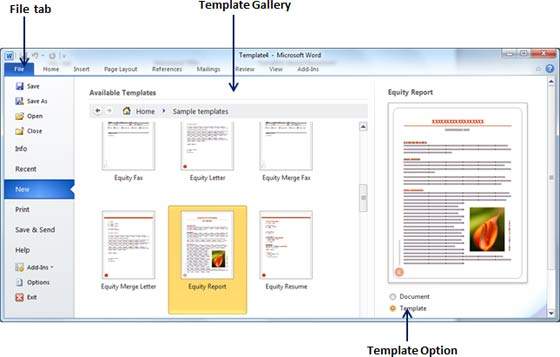
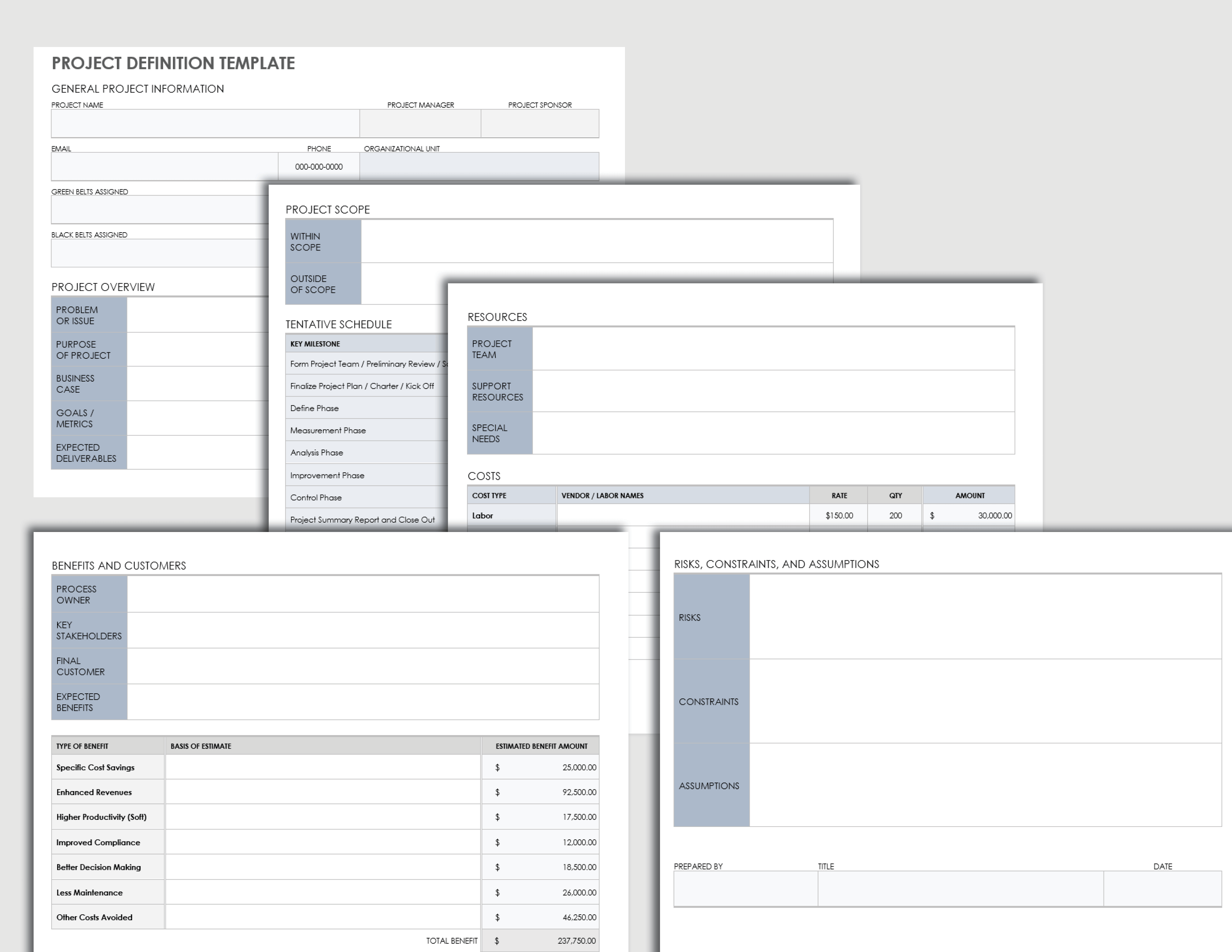
When you open Word and go to "File" > "New," you'll immediately see a selection of built-in templates. These are general-purpose templates provided by Microsoft, covering common document types like resumes, letters, reports, brochures, calendars, and more. They often feature clean designs and professional layouts, serving as excellent starting points if you don't have a specific organizational template. They are readily accessible and represent a quick way to create commonly used documents without significant design effort.

Online Templates (Office.com Integration)
Beyond the built-in options, Word seamlessly integrates with a vast library of online templates hosted on Office.com. This expansive collection is accessible directly from Word's "New" document screen, allowing you to search for templates by keyword (e.g., "invoice," "business card," "newsletter"). These online templates are frequently updated and cover an even broader range of scenarios, from highly specialized business documents to creative personal projects. They provide an incredible resource for inspiration and ready-to-use designs for almost any purpose.
Custom Templates
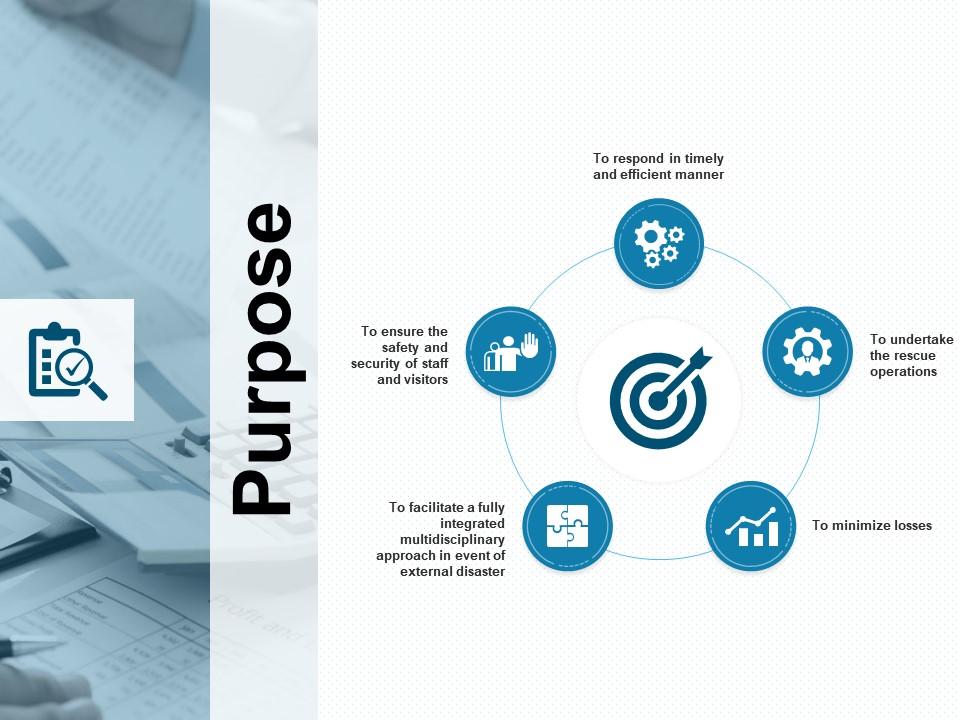
Perhaps the most powerful type, custom templates are those you or your organization create from scratch or by modifying existing ones. These are tailored precisely to specific needs, incorporating unique branding, proprietary content, specific content controls, or complex layouts required for internal reports, client proposals, or standard operating procedures. Custom templates ensure that documents perfectly align with internal guidelines and workflows, providing the ultimate level of control and customization. They are saved with the .dotx (or .dotm for macro-enabled) extension and typically stored in a user's templates folder or a shared network location.
Company or Organizational Templates
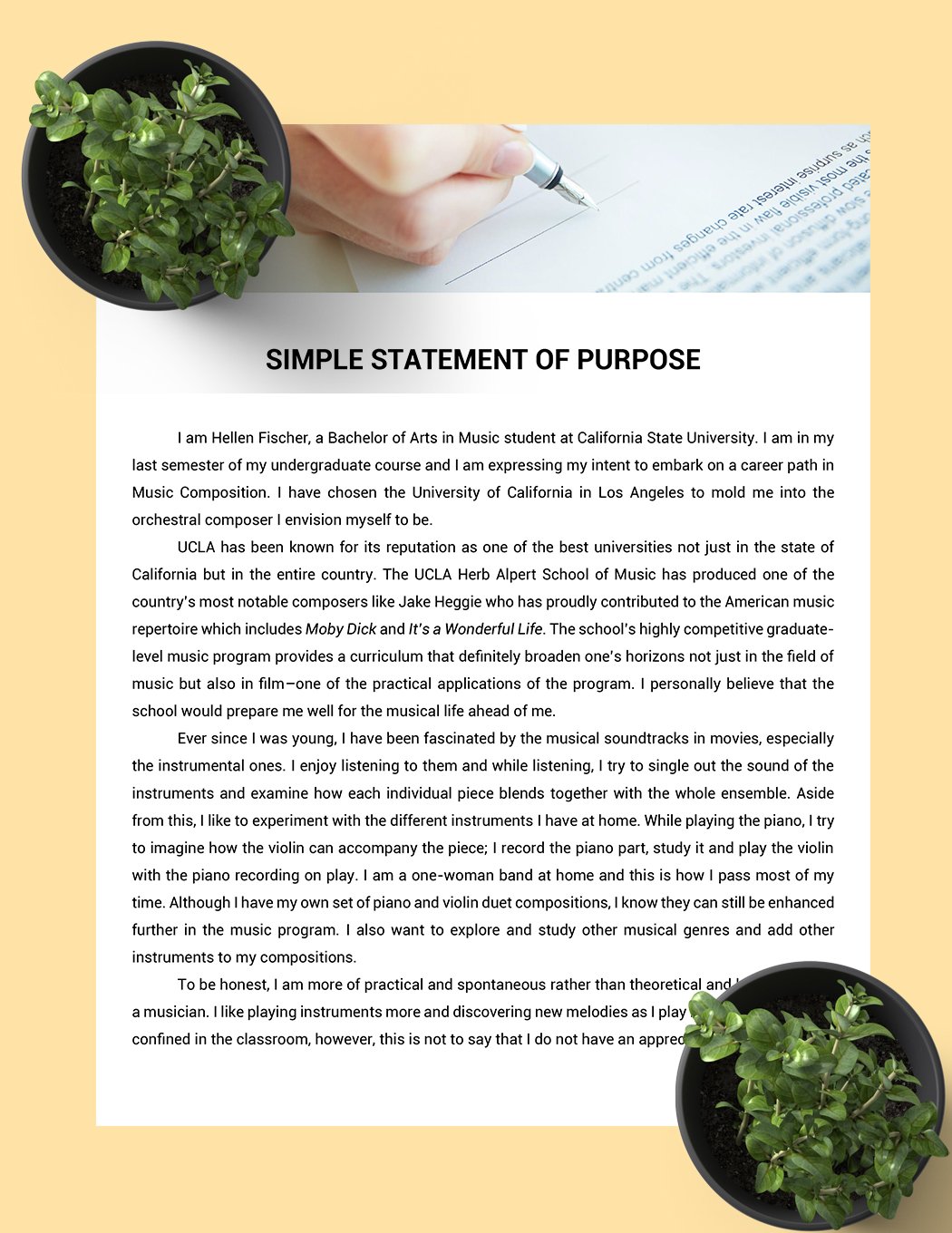
These are a specific category of custom templates that are developed and deployed across an entire organization. They are often managed by IT departments or a central branding team to ensure absolute consistency across all corporate communications. Such templates might be installed directly on employee computers or made available through a shared drive or SharePoint site, making it easy for everyone to access the correct, branded templates for their work.
How to Utilize Existing Templates in Word
Using an existing template in Word is a straightforward process that significantly streamlines document creation. Whether it's a built-in template or one you've downloaded or created, the steps are intuitive.

- Open Microsoft Word: Start the application as you normally would.
- Access the "New" Document Screen:
- Go to "File" in the top-left corner.
- Click on "New" from the menu.
- Browse or Search for Templates:
- On the "New" screen, you'll see a selection of featured templates.
- Below these, there's usually a search bar where you can type keywords (e.g., "resume," "memo," "newsletter") to find both built-in and online templates.
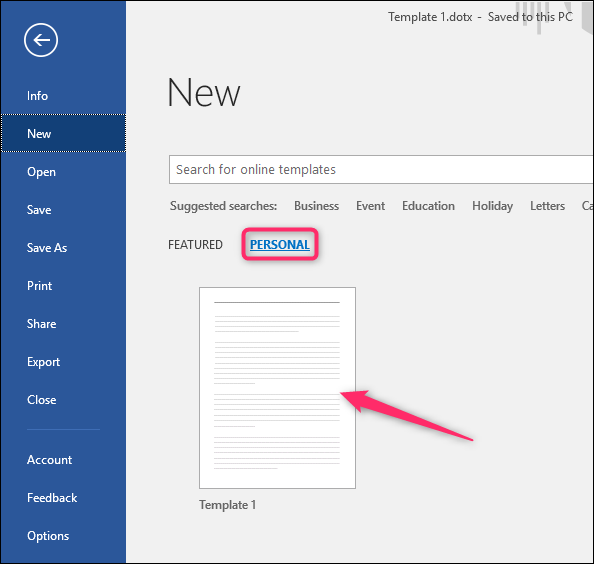
- If you have custom templates saved in Word's default template location, you might see an option like "Personal" or "Office" categories to access them.
- Select a Template: Click on the thumbnail of the template you wish to use.
- Create the New Document: A preview window will appear, often with a description. Click the "Create" or "Download" button.
- Word will then generate a new, untitled document based on your chosen template. This new document is a
.docxfile and is completely separate from the original template file.
- Word will then generate a new, untitled document based on your chosen template. This new document is a
- Populate with Your Content: The new document will open, pre-formatted with all the styles, placeholder text, and content controls from the template.
- Placeholder text: This is text like "[Type your name here]" or "Lorem ipsum..." that you simply select and replace with your actual content.
- Content controls: These are interactive fields (e.g., a drop-down menu for a date, a text box for a title, a checkbox). Click on them to interact and input information.
- Save Your Document: Once you've added your content, save the document as a regular Word document (
.docx) with a new, descriptive filename. This ensures your unique content is saved while the original template remains ready for future use.
Creating Your Own Custom Word Template
While pre-made templates are incredibly useful, the true power of what is a template in Word comes alive when you create your own. Custom templates allow you to perfectly match your specific needs, branding, and workflow.
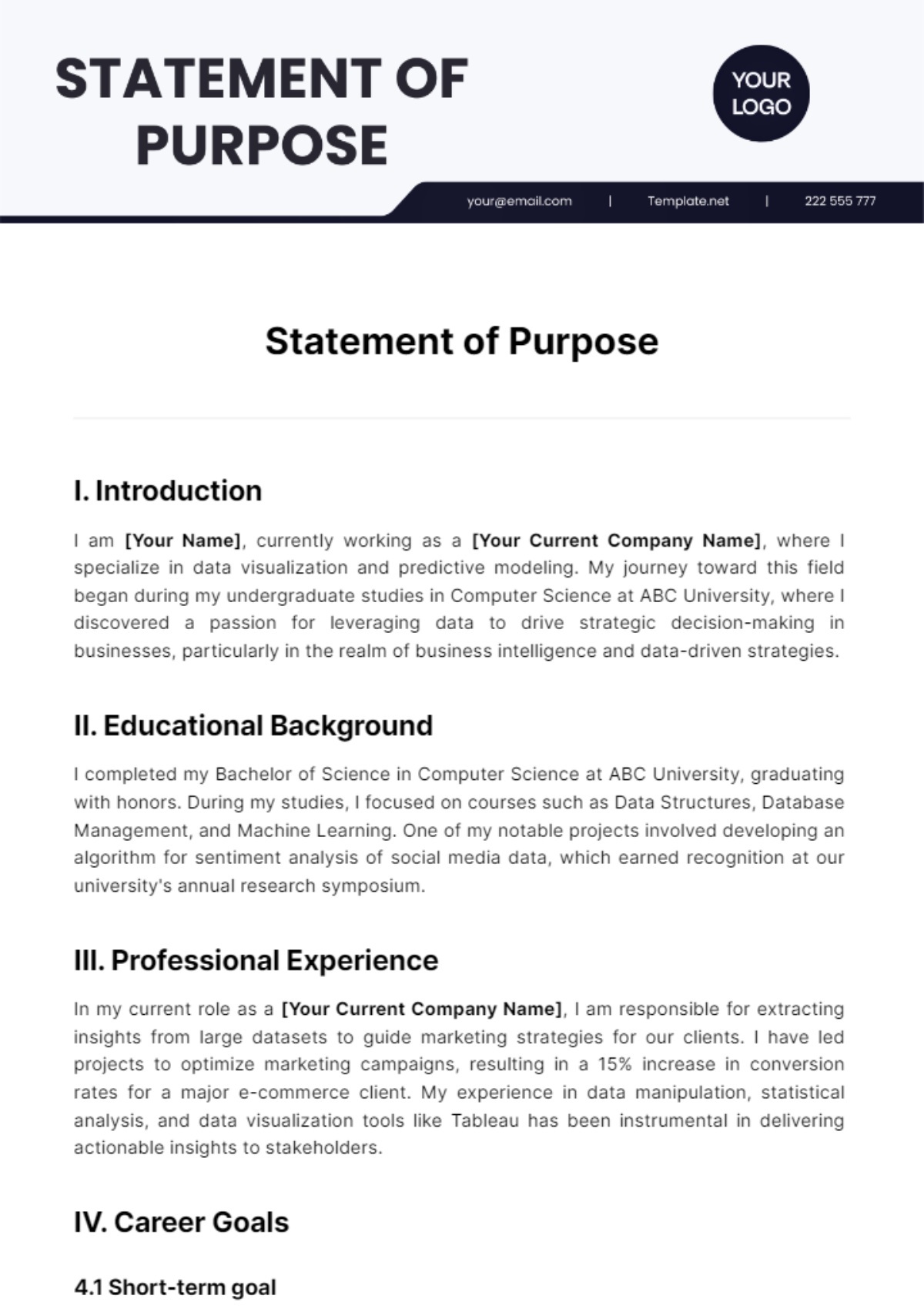
Step 1: Start with a Blank or Existing Document
You have two main approaches to begin creating a custom template:
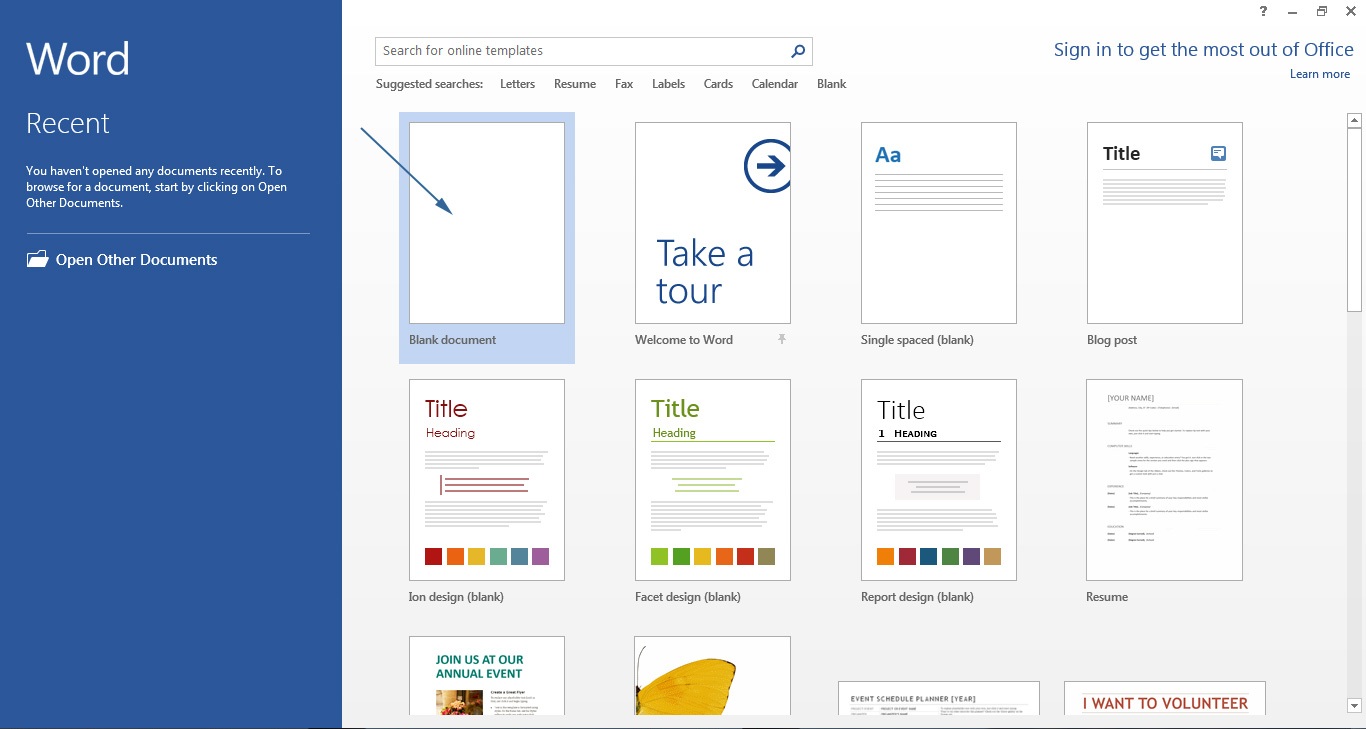
* From a Blank Document: Open a new blank Word document (File > New > Blank document). This is ideal when you want to build a template from the ground up, defining every aspect yourself.
* From an Existing Document: If you have a document that already has much of the formatting and content you want to reuse, open that document. This can save time by providing a starting point. Make sure to remove any unique content that won't be part of the template before saving.
Step 2: Define Styles and Formatting
This is the most critical part of template creation.
* Set Page Layout: Configure margins, paper size, orientation, headers, and footers (Layout tab).
* Create and Modify Styles: Go to the Home tab, find the Styles group, and open the Styles pane (the small arrow in the bottom right corner).
* Modify existing styles (e.g., Heading 1, Normal) to match your desired fonts, sizes, colors, and paragraph spacing.
* Create new styles for specific elements unique to your documents (e.g., "Company Quote," "Figure Caption").
* Ensure consistency across all styles.
* Insert Standard Elements: Add your company logo, a standard header or footer, boilerplate text (like a privacy disclaimer or contact information), and any recurring images.
Step 3: Add Content Controls (Optional but Recommended)
Content controls are interactive fields that guide users to input specific data, enhancing the template's usability.
* Enable Developer Tab: If you don't see the Developer tab on your Word ribbon, go to File > Options > Customize Ribbon, and check the "Developer" box.
* Insert Controls: From the Developer tab, in the Controls group, you can insert various types of controls:
* Plain Text Content Control: For single lines of text (e.g., "Client Name").
* Rich Text Content Control: For multi-paragraph input (e.g., "Project Description").
* Picture Content Control: For users to insert an image.
* Date Picker Content Control: For selecting dates.
* Drop-Down List Content Control: To provide a predefined list of options.
* Checkbox Content Control: For yes/no selections.
* Set Control Properties: Select a content control, then click Properties in the Controls group. Here you can add a title, tag, and specific instructions, and for drop-downs, define the list items.
Step 4: Protect Your Template (Optional)
If you want to prevent users from accidentally changing the template's structure or specific content, you can protect it.
* From the Developer tab, in the Protect group, click Restrict Editing.
* Choose "Allow only this type of editing in the document" and select "Filling in forms" if you primarily use content controls.
* Click "Yes, Start Enforcing Protection" and set a password if desired.
Step 5: Save as a Word Template (.dotx)
This is the crucial step that defines your file as a template.
* Go to File > Save As.
* Choose a location. It's best to save it in Word's default custom templates folder for easy access (often C:\Users\<username>\Documents\Custom Office Templates).
* In the "Save as type" drop-down menu, select "Word Template (.dotx)". If your template contains macros, select "Word Macro-Enabled Template (.dotm)".
* Give your template a meaningful name.
* Click "Save."
Now, when you go to "File > New" in Word, your custom template should appear under "Personal" or "Custom," ready to be used as the foundation for countless new documents.
Advanced Template Features and Best Practices
Mastering the basics of what is a template in Word is a great start, but leveraging advanced features can make your templates even more robust and user-friendly.
Protecting Template Structure and Content
Beyond simply restricting editing, you can use Word's protection features to lock down specific sections of your template. This is invaluable when certain elements (like legal disclaimers, company logos, or specific phrasing) should never be altered by the end-user. You can mark sections as "read-only" while allowing other areas, typically those with content controls, to be editable. This is done via the "Restrict Editing" pane, where you can specify which parts of the document users are allowed to change.
Utilizing Building Blocks
Word's Building Blocks are reusable pieces of content—text, graphics, tables, or entire page layouts—that you can save and insert into documents. This feature complements templates by allowing users to quickly add pre-approved content within a template-based document. For example, a template might have a section for client testimonials, and users could choose from a gallery of approved testimonials saved as Building Blocks. You can even include Building Blocks as options within Content Controls.
Automating with Macros (for .dotm Templates)
For highly repetitive tasks or complex document generation, templates can incorporate macros. A macro is a series of commands that you can run with a single click or keyboard shortcut. For instance, a macro could automatically fill in certain fields based on user input, format a table, or even export data to another application. Templates that contain macros must be saved as "Word Macro-Enabled Templates" (.dotm) to retain the macro code. However, be mindful of security implications when using and sharing macro-enabled templates.
Organizing and Managing Your Template Library
As your collection of templates grows, effective organization becomes crucial.
* Default Location: Word automatically looks for custom templates in a specific folder (typically C:\Users\<username>\Documents\Custom Office Templates). Saving your templates here ensures they appear in the "Personal" section when you create a new document.
* Subfolders: You can create subfolders within the custom templates folder to categorize your templates (e.g., "Marketing Templates," "HR Forms," "Project Management").
* Shared Network Locations: For team or organizational use, store templates on a shared network drive or a cloud service like SharePoint. This centralizes access and makes it easier to update templates for everyone.
Updating Templates
If your company branding changes or a form needs a new field, you'll need to update your template. Simply open the .dotx or .dotm template file directly (File > Open, then navigate to the template and select it). Make your changes, then save the template. New documents created from this updated template will reflect the changes. Note that documents already created from the old template will not automatically update; they are independent .docx files.
Managing and Sharing Your Templates
Effective management and sharing are paramount for templates to truly empower a team or organization. Understanding the lifecycle from creation to deployment is key.
Locating Your Templates
When you save a custom template, Word typically suggests a default location. This is usually C:\Users\<YourUsername>\Documents\Custom Office Templates. It's crucial to know this location because it's where Word looks for templates to display under the "Personal" tab when you go to File > New. For templates you've downloaded from Office.com, they usually get stored in a similar location but might be buried deeper in Word's program files. The easiest way to access any template for editing is to open Word, go to File > Open, then browse to the Custom Office Templates folder or wherever you explicitly saved your .dotx files.
Organizing Your Custom Templates
As your library of templates grows, consider creating subfolders within your Custom Office Templates directory. For example, you might have folders like "HR Forms," "Sales Proposals," or "Project Reports." While Word's interface might not always show these subfolders directly in the File > New > Personal view, organizing them this way on your hard drive helps you easily manage and locate the original template files for editing or backup.
Sharing Templates with Others
For teams or organizations, simply creating a template isn't enough; it needs to be accessible to everyone who needs it.
* Network Drive/Shared Folder: The most common method for internal teams is to save templates on a shared network drive or a dedicated shared folder. Users can then access these network locations directly from Word. You can even configure Word's trusted locations (File > Options > Trust Center > Trust Center Settings > Trusted Locations) to include these network paths, making templates safer and easier to open.
* SharePoint/OneDrive: Cloud storage solutions like SharePoint or OneDrive are excellent for sharing templates, especially for geographically dispersed teams. Templates can be stored in a shared library, and users can open them directly from the cloud, creating a new document in their local Word application. This also allows for version control of the templates themselves.
* Email (with caution): While you can email a .dotx file, it's generally not the best practice for ongoing team use, as it makes version control difficult. Each person would have their own copy, and updating the template would require re-sending it to everyone. It's suitable for sharing a one-off template with an external party.
Ensuring Template Security
When sharing templates, especially .dotm files that contain macros, consider security implications. Ensure that macros come from trusted sources. Organizations often deploy templates via Group Policy or other IT management tools to ensure they are centrally managed, secure, and available to all users. Using Word's "Restrict Editing" features within the template also prevents unauthorized modifications, maintaining the template's integrity.
Conclusion
Understanding what is a template in Word unveils a cornerstone feature for efficient and professional document creation. Far more than just a pre-formatted document, a template acts as an intelligent blueprint, encapsulating styles, layouts, boilerplate content, and interactive controls to standardize your output. From ensuring consistent branding across all corporate communications to drastically cutting down the time spent on repetitive formatting, the benefits are profound.
Whether you're leveraging Word's extensive library of built-in and online templates or crafting highly customized versions for specific personal or organizational needs, templates empower users of all skill levels to produce polished, error-free documents with remarkable speed. By mastering the creation, utilization, and management of these powerful .dotx files, you unlock a new level of productivity, allowing you to focus on the message rather than the medium. In today's fast-paced environment, the ability to rapidly generate high-quality, consistent documents is an invaluable skill, and Word templates are your essential tool for achieving it.
0 Response to "What Is A Template In Word"
Posting Komentar